Attachment size limits for small teams: what to check

Attachment size limits on a project management platform come from two separate rules stacked on top of each other: a per-file ceiling (how big a single upload can be) and a total storage quota (how much your whole workspace can hold). An upload can fail because of either one, and knowing which is blocking you saves a support ticket. On Seven, the fastest checks are your account settings, the workspace storage panel, and the pricing page if you’re bumping against plan quotas.
If an upload fails right now, work through these before anything else:
- Check the file’s actual size against your plan’s per-file limit.
- Open the workspace storage panel to see how close you are to your total quota.
- If both look fine, try again on a different network or browser, then contact support with the file size and a timestamp.
Key Takeaways
Attachment uploads fail because of a per-file ceiling, a total storage quota, or an access issue, and each has a different fix.
| Point | Details |
|---|---|
| Two separate limits | Per-file ceilings and total storage quotas are enforced independently; check both before assuming a bug. |
| Error codes point somewhere specific | A 413 error means per-file size; a 403 error means permissions, not size. |
| External links preserve quota | Link to files instead of attaching them when a file is large or rarely needed inline. |
| Audit storage regularly | Schedule quarterly reviews of old attachments to avoid sudden quota surprises. |
| Seven’s approach | Seven combines clear per-file and storage tracking with no data mining, backed by its published security page. |
Table of Contents
- What causes attachment size limits to kick in?
- Where do you check attachment limits in Seven?
- What do real-world attachment limits look like?
- How do you handle large files without breaking privacy?
- What should you check when an upload fails?
- What should you check about privacy and compliance?
- Why shouldn’t your PM tool double as a file server?
- How does Seven handle attachments without the bloat?
- Where can you check limits and security details further?
- Frequently asked questions about attachment size limits
What causes attachment size limits to kick in?
Two different rules govern whether a file lands successfully, and platforms rarely explain which one just tripped. The first is a per-file ceiling, a hard cap on any single upload regardless of how much space you have left. The second is a total storage quota, the cumulative limit across your whole workspace or account. A 40 MB file might sail past a per-file check and still get rejected because your team’s combined attachments have already eaten through the plan’s storage allowance.
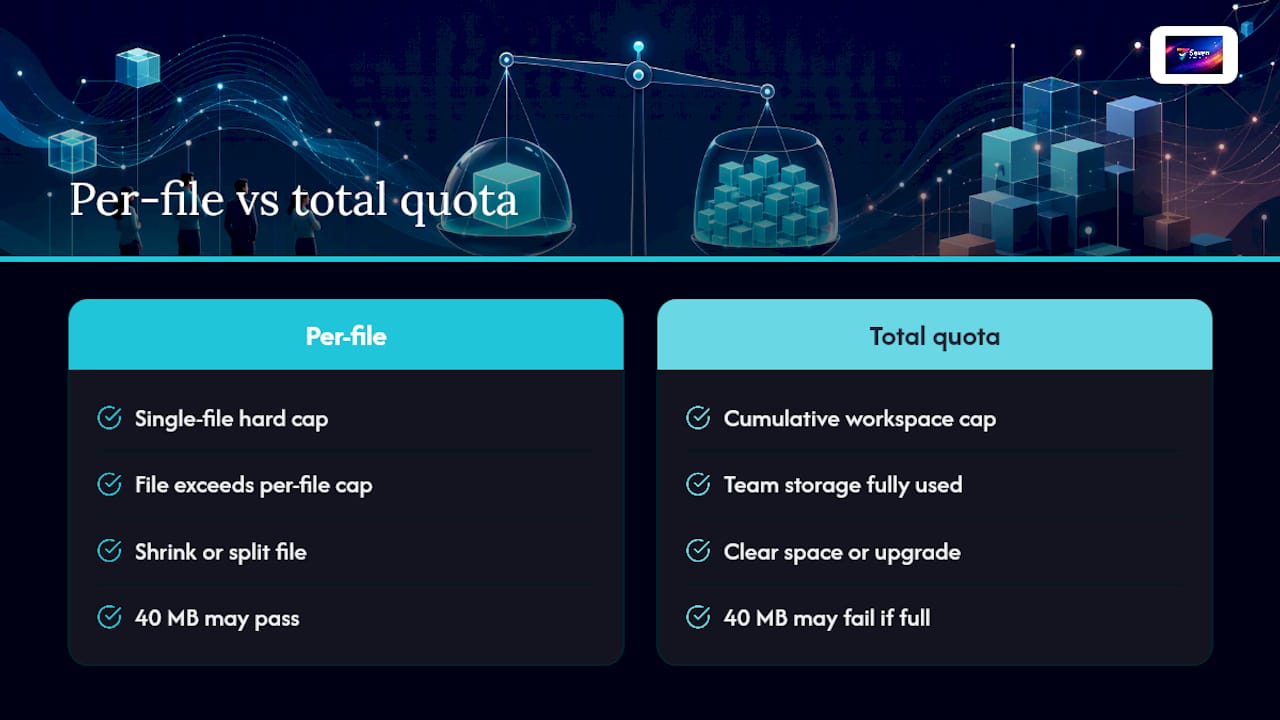
This distinction matters because the fixes are different. A per-file rejection means you need to shrink or split that one file. A quota rejection means you need to clear space, upgrade, or stop attaching large files altogether. Jira Cloud’s documentation is a useful reference point here: its default per-file limit sits around 1 GB, adjustable up to 2 GB on some setups, while storage caps are tracked entirely separately by plan.
There’s a third layer that catches people out: API and UI uploads don’t always behave the same way. Some environments enforce tighter limits when a file comes in through an integration or script rather than a manual drag-and-drop, according to community reports on Jira Cloud’s API behaviour. If an automated workflow is failing but manual uploads work fine, that’s the first thing to suspect.
Pro Tip: Don’t wait for a hard rejection to check your usage. Most teams only discover they’re near quota when an upload fails mid-task, which is the worst possible time to find out.
Where do you check attachment limits in Seven?
You don’t need to guess. Run through these in order:
- Open Account Settings to see if a per-file ceiling is configured for your plan tier.
- Check the workspace storage usage panel for your current total against your plan’s quota.
- If you’re on a team plan, ask an admin to check the billing page, since usage is often tracked at the workspace level, not per user.
- If numbers look fine but the upload still fails, visit the support centre before assuming it’s a limits issue.
Two numbers actually matter here: how much of your quota is used right now, and whether the file you’re trying to attach exceeds the per-file ceiling on your plan. Everything else is noise.
Pro Tip: Before contacting support, grab a screenshot of the error, note the exact file size in megabytes, and record the timestamp of the failed attempt. Support tickets with all three resolve faster than vague “it’s not working” reports.
What do real-world attachment limits look like?
These figures are illustrative examples from other platforms, not universal rules, but they set realistic expectations for what “typical” looks like.
- SAP S/4HANA Cloud’s attachment service enforces a 100 MB per-file hard limit in some configurations, independent of overall storage.
- PPM Express caps individual files at 25 MB, with storage warnings appearing around 95% usage before uploads actually fail.
- GitLab.com’s free tier gives projects 10 GiB of storage, and a project can be placed into read-only mode if a fixed limit is exceeded.
- Project Online sets an initial 25 GB quota per Project Web App site, which sounds generous until a handful of design files or video walkthroughs start eating into it.
A single large video file can consume a significant portion of a small plan’s monthly quota if the quota size is limited. Enterprise hard limits like SAP’s are fixed regardless of your plan; cloud quotas are soft in the sense that they scale with what you pay for.
How do you handle large files without breaking privacy?
The instinct when a file is too big is to email it or dump it in a general-purpose cloud drive. Don’t. That defeats the point of using a privacy-focused platform in the first place.
- Compress first. Most PDFs, images, and design exports shrink 30 to 70% with basic compression tools before you even think about limits.
- Split large files into logical chunks if the content allows it (multi-page reports, batched image sets).
- Link instead of attach for anything over your per-file threshold, using an external host with encryption in transit and access controls you actually trust.
- Reference, don’t duplicate. Store the master file once, link to it from every task that needs it, rather than re-uploading the same asset five times.
Before you pick an external host for the “link instead of attach” approach, run it against a short checklist: does it encrypt data at rest and in transit, can you restrict access to named users, and does it have a retention policy you control rather than one dictated by a free-tier default?
Pro Tip: Set a recurring monthly reminder to audit attachments older than 90 days. Files nobody has opened in three months are usually safe to archive externally and remove from active storage.
- Archive completed project attachments quarterly instead of letting them accumulate indefinitely.
- Use metadata references (a filename and location note) for large source files instead of uploading the whole thing to a task comment.
What should you check when an upload fails?
Run through this in order rather than guessing:
- Confirm the exact file size in MB or GB, not an estimate.
- Check your workspace’s current storage usage against its quota.
- Verify you have upload permissions for that specific task or workspace.
- Try a different browser or device to rule out a local network issue.
- If the file’s genuinely too big, use chunked upload or switch to a link instead.
Error messages usually point somewhere specific. A 413 Payload Too Large almost always means the per-file limit, not the quota. A 403 Permission Denied means it’s an access issue, not a size issue at all. A 500 Server Error is more often a transient network problem than anything to do with limits.
If you’ve run all five checks and the upload still fails, that’s the point to escalate rather than keep retrying. Include the exact error code, file size, and a screenshot when you contact Seven’s support team.
What should you check about privacy and compliance?
Attachments sitting inside a project management tool are still data at rest, and that means the usual questions apply: is it encrypted, who can access it, and how long does it stick around after you’re done with it?
- Confirm encryption at rest and in transit for anything you upload.
- Check whether access controls let you restrict a file to specific team members, not just the whole workspace.
- Ask about retention and deletion policies, especially if you need to purge client data on request.
- Confirm you can export attachments and data if you ever need to leave the platform.
| Consideration | Why it matters |
|---|---|
| Encryption at rest/in transit | Protects files during storage and during upload/download |
| Access controls | Limits who inside your workspace can view or download a file |
| Retention and deletion | Determines whether data lingers after a project closes |
| Data export/portability | Confirms you’re not locked into the platform long-term |
Heavy binary storage also complicates backups. The more large files sit in a platform, the slower and costlier backup and restore cycles become, which is one reason treating a project tool as long-term file storage tends to backfire over time. Seven documents its own encryption, access control, and retention commitments on its security page, which is worth reading before you decide how much to store there versus link externally.
Why shouldn’t your PM tool double as a file server?
Convenience wins in the short term when you attach everything directly to a task. It costs you later, when storage balloons, backups slow down, and nobody remembers which version of a file is current. My view: keep attachments small and purposeful, and reference larger assets by link with clear version notes rather than re-uploading them. A simple team policy, cap attachments under a set size and store anything bigger externally with a linked reference, solves most of this before it becomes a problem.
How does Seven handle attachments without the bloat?
Seven keeps attachment handling straightforward: reasonable per-file limits, clear storage usage tracking per workspace, and no data mining or analytics running on anything you upload. For a small team that’s outgrown ad hoc file sharing but doesn’t want their project data sitting inside someone else’s advertising pipeline, that combination matters more than raw storage numbers.
If you’re deciding whether Seven’s storage and attachment setup fits your team, the 7-day free trial on the pricing page is the place to start. Upload a realistic file, a design export, a client PDF, whatever you’d normally attach, and check the workspace usage panel to see exactly where it lands against your quota. If encryption and retention guarantees are a dealbreaker for your team, read the security documentation first. Plans start at $5 for individuals and $9 per user for teams, with no hidden storage surcharges buried in the fine print.
Where can you check limits and security details further?
Platform examples cited above are illustrative; your own workspace settings always take precedence.
Frequently asked questions about attachment size limits
What’s the difference between a per-file limit and a storage quota? A per-file limit caps the size of one upload. A storage quota caps the total space your workspace can use across every attachment combined. You can pass one check and still fail the other.
Why did my upload fail even though the file is small? Your workspace’s total storage quota may already be near full, even if the individual file is well under the per-file ceiling. Check usage before assuming the file itself is the problem.
Should I attach large files directly or link to them? Link to them where possible, especially for files you don’t need to open constantly inside a task. It keeps your quota free and avoids treating your project tool as a file server.
How do I reduce a file’s size before uploading? Compress images and PDFs first, since most shrink significantly with basic tools, and split large multi-page documents into smaller sections where the content allows it.
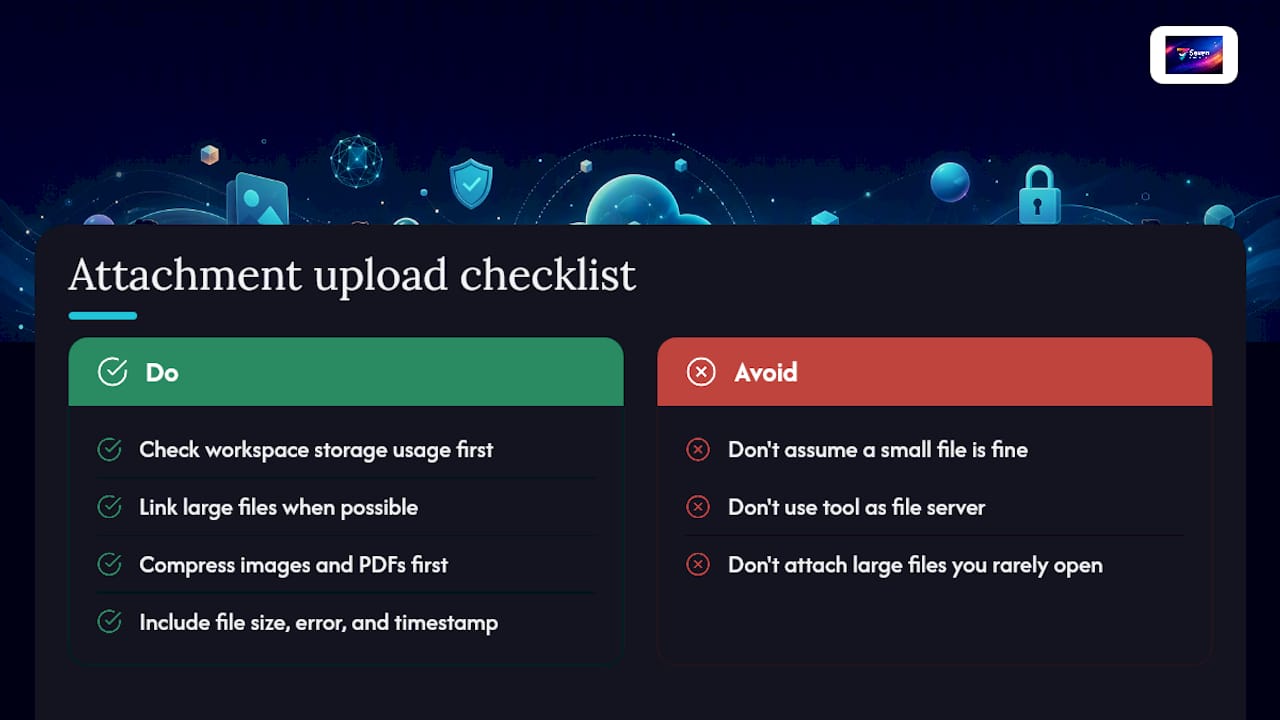
What should I include when contacting support about an upload failure? The exact file size, the error message or code you received, and a timestamp of the failed attempt. That combination speeds up resolution considerably.