Avoid Data Loss When Exporting: CSV, JSON, XML for Project Managers

Yes, you can export your project data, and the format you pick should match the job. CSV or Excel suits quick reports, JSON or XML preserves structure for migrations, and a full export bundle covers backup or portability. Full archives usually need admin access, and most established tools now support scheduled or automated exports for regular reporting cycles.
TL;DR:
- Full exports should include attachments and history to ensure a complete backup for platform migration or compliance, not just task data.
- Use CSV for quick reports and Excel analysis, but JSON and XML are necessary to preserve nested relationships and dependencies.
- Confirm export permissions before starting, especially for full archives, since they are typically restricted to admins or owners.
- Validate exports by checking row counts, key fields, and test re-imports, especially for large files or automated scheduled exports.
- Regular testing and scheduled exports reduce risks of missing data or broken relationships during critical project transitions or audits.
Table of Contents
- Project management with data export: choosing the right format
- How do you actually run an export?
- Who can export project data, and why does it matter?
- How do you validate an export before you trust it?
- When should you automate and schedule exports?
- What does Seven’s approach to exports actually look like?
- Why “you can always export later” is bad advice
- Get export freedom without the admin headaches
- Sources
Project management with data export: choosing the right format
The format question comes down to one thing: what happens to the file after it leaves the platform. If someone is going to open it in Excel and build a pivot table, CSV works fine. If the file needs to survive a platform migration with every relationship intact, CSV will let you down.
CSV flattens everything into rows and columns. Parent-child task relationships, nested subtasks, and attachment links get stripped out or duplicated across rows. It is genuinely useful for spreadsheet analysis and quick reporting in project tracking and data export tasks, but CSV is a flat, tabular format not suitable as a full backup. JSON and XML handle this differently. They preserve nested structures, so a task with five subtasks and three attachments stays intact as one coherent object rather than scattering across a dozen disconnected rows.
For schedule interchange specifically, Microsoft Project’s XML format (often called MSPDI) is the standard. If you are handing a schedule to a scheduler using different software, or archiving a Gantt chart with dependencies intact, this is the format that survives the trip.
Match the format to the job:
- CSV/Excel — status reports, budget summaries, stakeholder updates
- JSON — developer handoff, API integration, re-importable snapshots
- XML (MSPDI) — schedule migration between project tools
- Full archive bundle — backup, platform migration, compliance audits
Pro Tip: If attachments matter to your export, check the bundle contents before you commit. A CSV export of task data won’t carry a single file attachment with it. You need the full bundle for that.
How do you actually run an export?
Every platform’s interface looks different, but the underlying workflow is nearly identical. Miss a step and you end up with a file that looks fine until someone tries to use it.
- Confirm your objective first. Are you backing up everything, pulling a filtered report, or handing data to a developer? This decides your format before you touch any menu.
- Check your permissions. Full-archive exports with attachments and history are commonly restricted to admins or workspace owners, so confirm your access level before you plan around a feature you can’t reach.
- Set the scope. Filter by project, date range, or team. Exporting an entire multi-year workspace when you need last month’s sprint data wastes time and bloats the file.
- Map your fields. Microsoft Project’s Export Wizard, for instance, lets you map source fields to target columns during export or import, which matters most when the destination tool uses different field names.
- Run the export and monitor the job. Small exports finish instantly. Large ones often kick off an asynchronous job.
- Download and validate. Never assume the export worked. Open it.
For anything you run more than once a month, the UI gets tedious fast. That is when an API-driven export earns its keep. Large exports typically follow an async pattern where the server returns a 202 Accepted response, then you poll for job status until the archive is ready to download. Build a habit of checking job status rather than assuming completion, and grab the file before any download link expires.
Who can export project data, and why does it matter?
Most platforms split export permissions into tiers, and the split is not arbitrary. General team members can typically export the views they already see, filtered reports, task lists, their own timelogs. Full-archive exports containing attachments, time entries, and complete history are a different matter. Many platforms restrict these to admins or workspace owners, because a complete archive often includes data belonging to people who never consented to a bulk download.
This restriction exists for a reason worth respecting, not working around. A full export can contain private messages, salary-linked time data, or client files that shouldn’t leave the workspace on a whim.
Good platforms log export activity, recording who exported what and when. That audit trail matters if a client asks whether their project data ever left the platform, or if you need to prove nobody quietly extracted sensitive information before leaving the team.
Before you export anything sensitive:
- Confirm you actually have the access level the export requires.
- Store the downloaded file somewhere encrypted, not a shared desktop folder.
- Check whether the download link is authenticated and time-limited.
- Treat the file as you would any other sensitive personal data, because it usually is.
Storage and handling matter just as much as the export itself. Reviewing basic security and data protection practices before you move exported files anywhere is worth the ten minutes it takes.
How do you validate an export before you trust it?
An export that runs without error is not the same as an export that is correct. Validation takes five minutes and saves you from discovering a broken file during a client presentation.
Start with row counts. If your project had 340 tasks before export, your CSV should have roughly that many rows, accounting for any filters you applied. A mismatch means something got dropped.
Quick checks worth running every time:
- Row count roughly matches your expected task or record count.
- Key ID columns are present and populated, not blank or duplicated.
- Date formats match what the destination tool expects.
- Delimiters and encoding are correct, especially with non-English characters or commas inside text fields.
CSV exports are notorious for silently dropping hierarchy and custom fields, because a flat file has nowhere to put a parent-child relationship. If your export includes a manifest file, check it against per-member counts to verify contents before you rely on the archive.
Pro Tip: For large exports, sample a small re-import into a test workspace rather than trusting the file blind. If ten records import cleanly with the right relationships intact, the rest of the archive almost certainly will too.

When should you automate and schedule exports?
Manual exports work fine for one-off migrations. They fall apart fast once you need the same report every week.
- Backups run on a recurring schedule, weekly or nightly, so you always have a recent restore point.
- BI feeds update daily and export account-wide tables as CSV, often restricted to enterprise plans or admin roles rather than available to every user.
- Audit snapshots get triggered around compliance deadlines or client handoffs, capturing a fixed point in time.
For large or recurring exports, the async pattern (submit, poll, download) beats manual clicking every time. A daily scheduled BI feed also produces more reliable joins than repeated ad-hoc exports, since a fixed schedule keeps your data consistent across tables. Watch the retention window, too. Some platforms only keep exported files for a set number of days before they expire and you need to run the job again. Build cleanup and re-download into your calendar, not your memory.
What does Seven’s approach to exports actually look like?
Seven treats export as a right, not a feature you unlock with a higher tier. The platform builds its export bundles around a canonical JSON seed alongside supporting files, attachments, time entries, and history, so a full archive holds everything needed for a genuine restore, not just a partial snapshot. That structure matters if you’re ever moving off a platform and need your SaaS project data backed up properly rather than trapped in a proprietary format.
Independence from any single vendor isn’t a nice-to-have. It’s the difference between owning your project history and renting access to it.
Before you rely on any export as a real backup:
- Confirm the bundle includes attachments and history, not just task rows.
- Test a sample re-import in a spare workspace.
- Set a retention policy and check export expiry and verification steps.
- Keep an audit log of who ran each export and when.
Why “you can always export later” is bad advice
Most teams treat export capability as a checkbox they’ll worry about when a migration forces the issue. That’s backwards, and it’s the single biggest thing conventional project management advice gets wrong.
The problem with waiting is that by the time you need a full archive urgently (a vendor shutting down, a contract dispute, a client audit) you discover the export you assumed existed is either admin-restricted, missing half your attachments, or simply doesn’t preserve the relationships you need. Nobody tests their exit ramp until they’re already trying to use it.
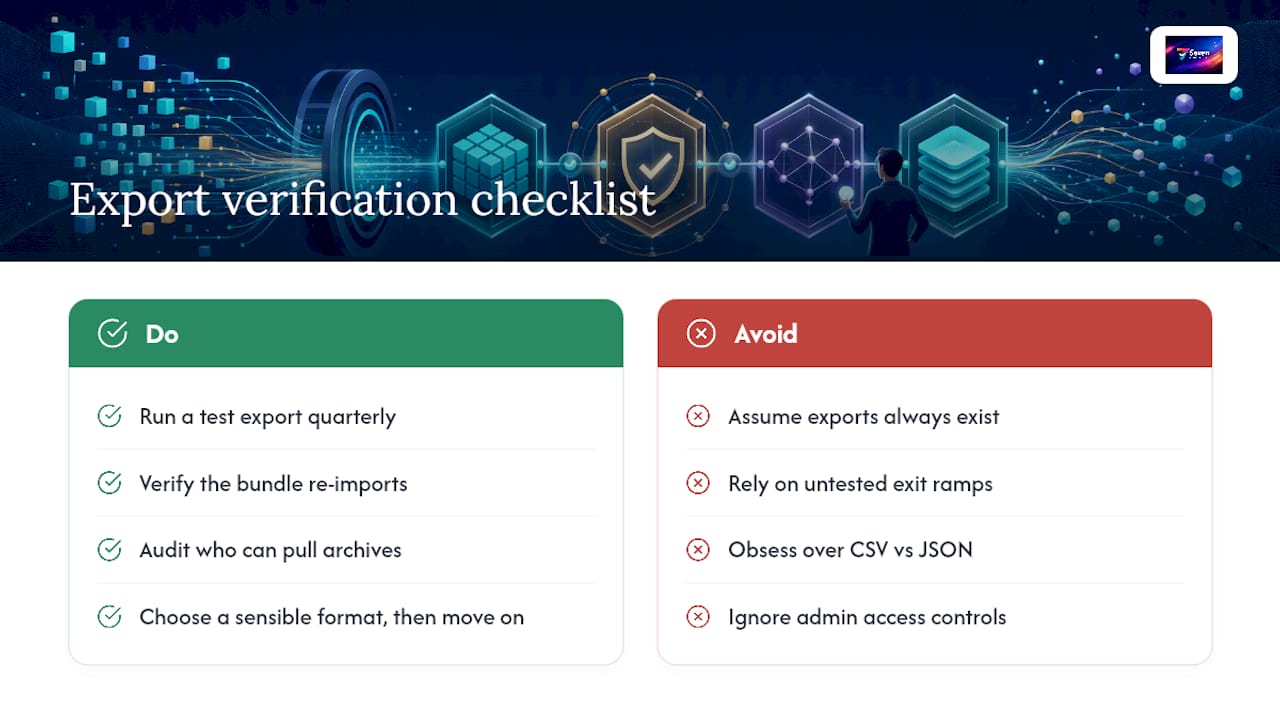
What the research on export patterns actually supports is treating export capability as an ongoing practice, not a feature. Run a test export quarterly. Verify the bundle actually re-imports. Check who has admin access to pull a full archive if you’re hit by a bus, or a budget cut. That habit costs almost nothing and pays off exactly once, at the worst possible moment if you skip it.
The overrated part of this conversation is format obsession. People argue endlessly about CSV versus JSON versus XML when the real risk is never testing the export at all. Pick a sensible format for the job and move on. Prioritise verification over perfection.
— Greg
Get export freedom without the admin headaches
The platform is built around the idea that your project data belongs to you, not to whichever platform happens to be storing it. It aims to avoid vendor lock-in, analytics harvesting your task history, and delays in obtaining a usable export bundle.
For project managers who’ve been burned by a platform that made data extraction painful, or who simply want the peace of mind that comes with knowing a full, re-importable archive is always one click away, the platform offers flexible workspaces, Excel import, file attachments, and built-in messaging. Details on features and pricing are available on the provider’s website. If avoiding vendor lock-in matters to how you manage project files and storage, start a free trial at Seven and run a test export yourself within the first week.